How to set a Live Photo as your iPhone wallpaper
Aktualisiert 2026-07-31
2Live kostenlos herunterladenHow to set a Live Photo as your iPhone wallpaper
 Free
FreeTier-Wallpaper
 Free
FreeNatur-Wallpaper
Schwarze & AMOLED-Wallpaper

Tier-Wallpaper

Natur-Wallpaper

Schwarze & AMOLED-Wallpaper

Tier-Wallpaper

Natur-Wallpaper
Kurzfassung
- The shortcut is the Share sheet: open the Live Photo in Photos, tap Share, then “Use as Wallpaper” — you never need to open Settings.
- Check the circular motion toggle in the bottom-left before you tap Add. If it's crossed out, your wallpaper sets as a still.
- Motion plays on the lock screen only. Raise the phone or tap the screen and it animates; the home screen keeps the still frame.
Most walkthroughs send you into Settings → Wallpaper → Add New Wallpaper → Photos, which is four screens before you even see your photo. If the Live Photo is already in your library there's a much shorter route: open it, share it, and set it — three taps.
Here's every screen you'll see, in order, with the one toggle that decides whether your wallpaper actually moves.
Schritt für Schritt
- 1
Open the Live Photo and check the LIVE badge
In the Photos app, open the photo you want on your lock screen. Look for the “LIVE” badge in the top-left corner — that badge is the motion clip attached to the still. No badge means it's an ordinary photo and it will never animate as a wallpaper.
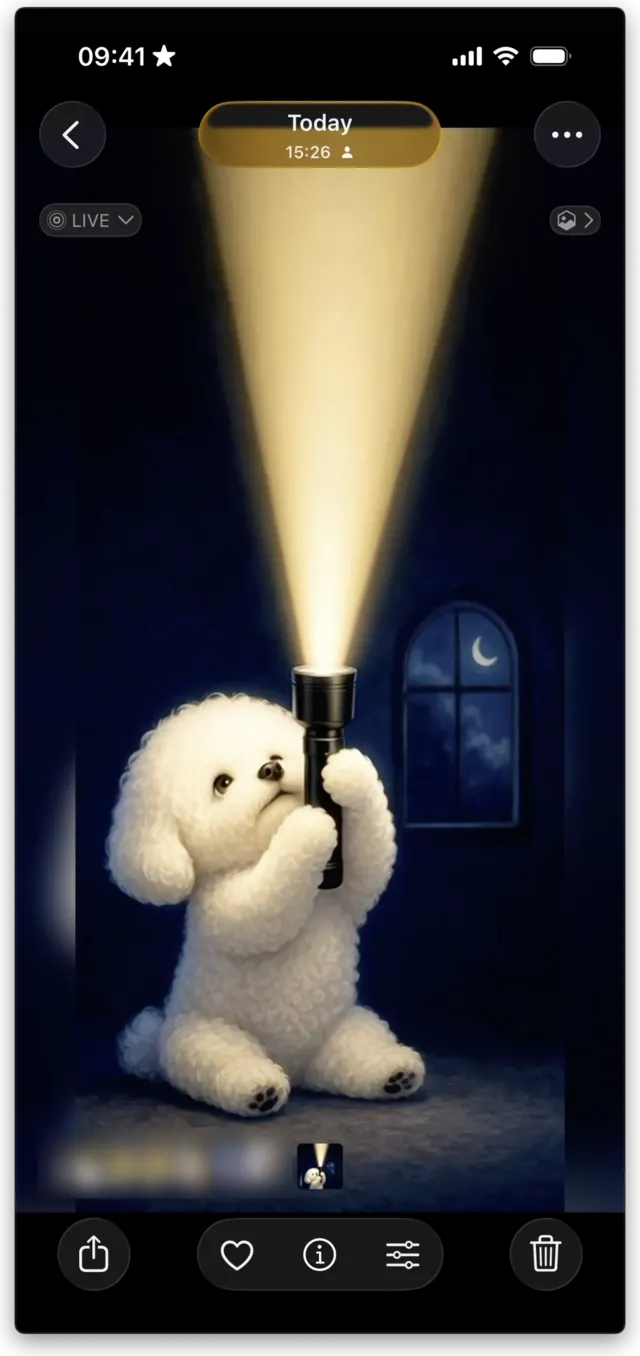
The LIVE badge, top-left — no badge, no motion. - 2
Tap Share, then “Use as Wallpaper”
Tap the Share icon in the bottom-left, then scroll the bottom list past AirDrop and Copy Photo until you reach “Use as Wallpaper.” This is the shortcut — it drops you straight into the lock-screen editor with this photo already loaded.
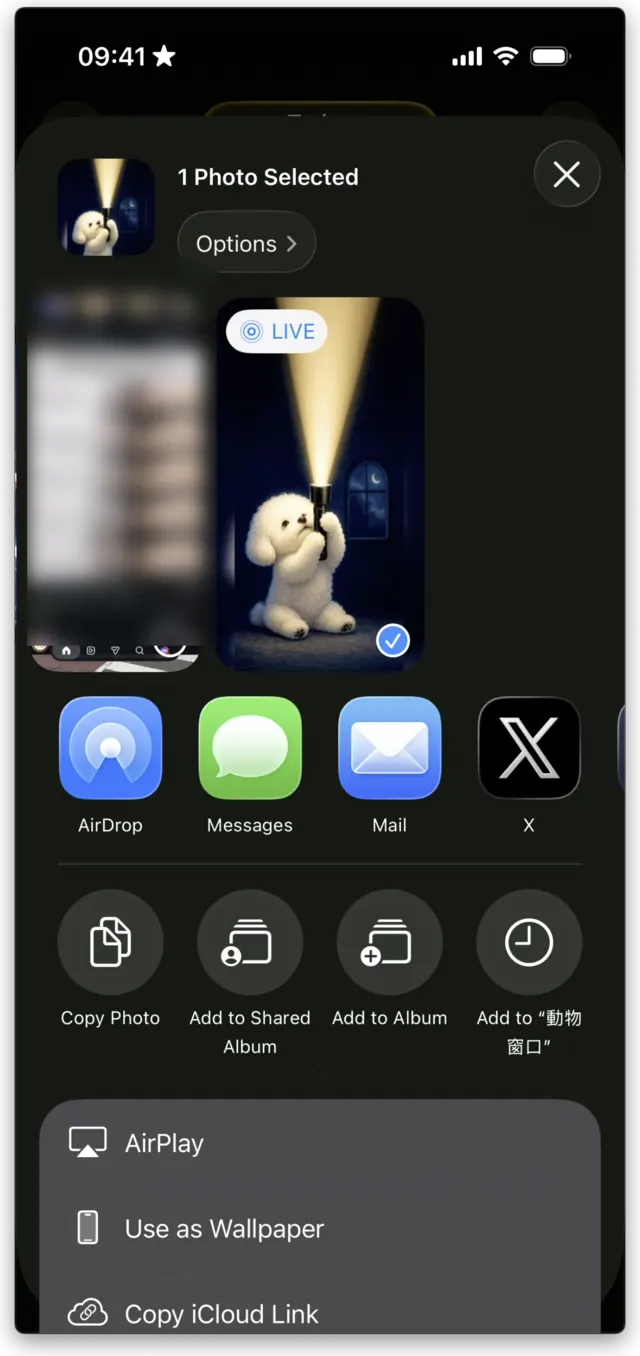
“Use as Wallpaper” sits below AirPlay in the Share sheet. - 3
Make sure the motion toggle is on
You're now in the lock-screen editor. The circular button in the bottom-left corner is the motion toggle: a play symbol (▶) means motion is on, and a crossed-out icon means iOS will set the still frame instead. Tap it until you see the play symbol. Drag and pinch the image while you're here to position the subject under the clock.
If the toggle is greyed out or reads “Motion Not Available,” iOS has rejected the key frame rather than the photo. Changing the key photo in Photos fixes it — see the linked guide at the end.
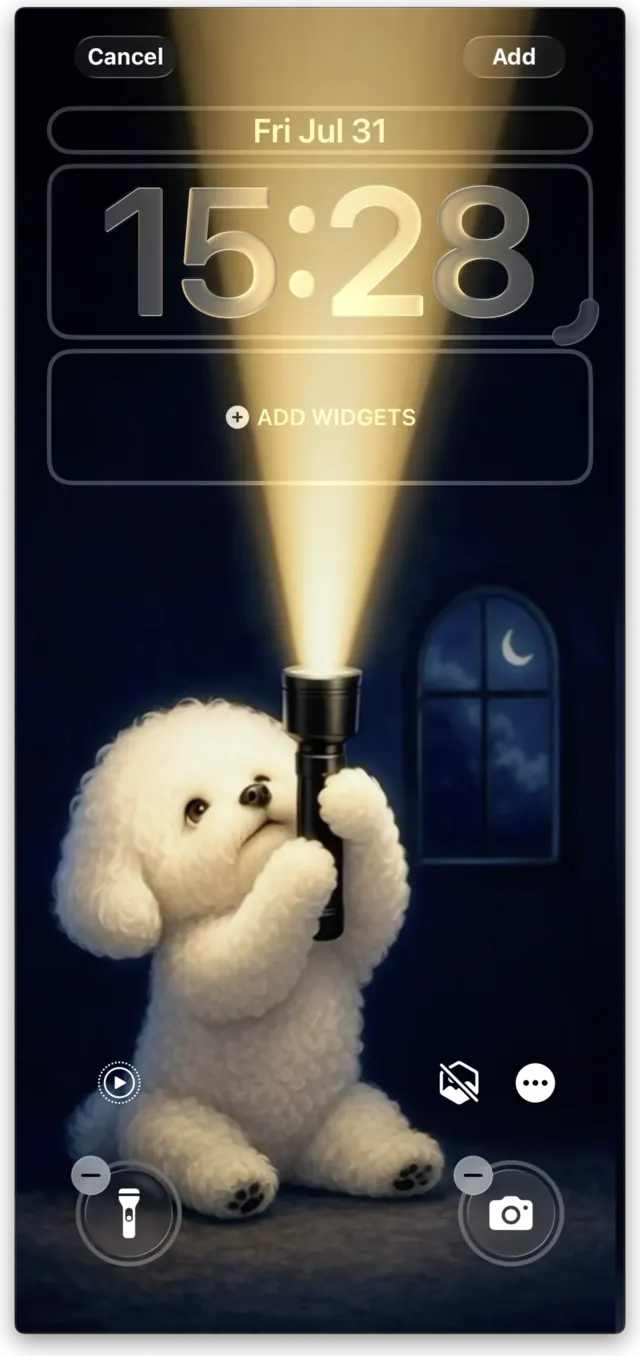
Bottom-left: ▶ means the motion is on. - 4
Tap Add, then “Set as Wallpaper Pair”
Tap Add in the top-right. iOS offers a preview of the lock screen and home screen together: choose “Set as Wallpaper Pair” to use the same image for both, or “Customize Home Screen” to pick a different background or a blur behind your icons.
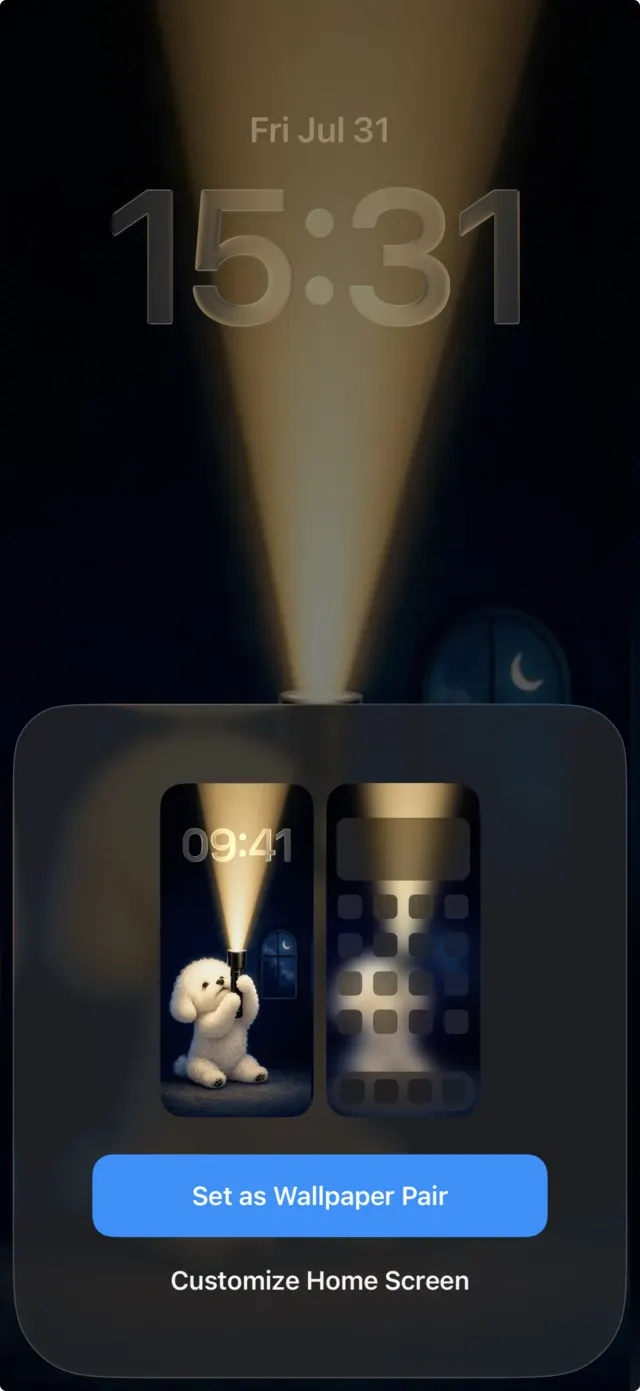
Pair both screens, or customise the home screen separately. - 5
Lock the phone and watch it play
That's it. Lock your iPhone, then raise it or tap the screen — the motion plays on the lock screen. On an iPhone 13 Pro or later it runs at the display's full 120Hz ProMotion refresh rate.
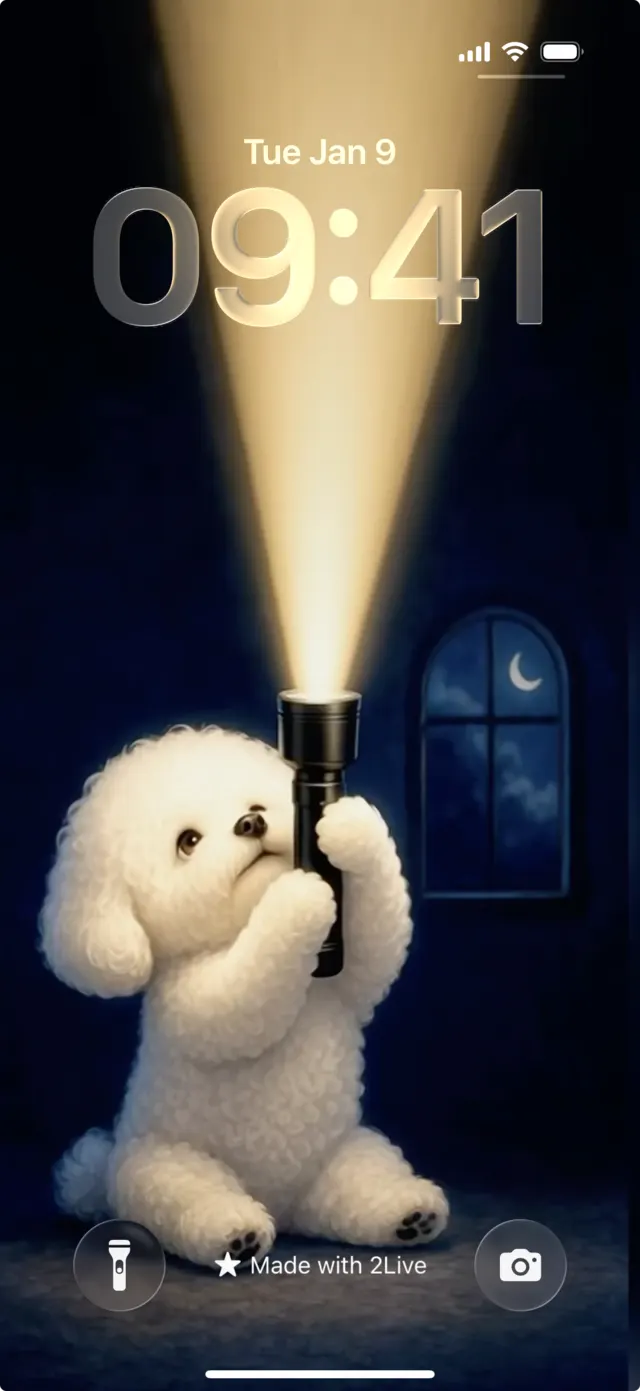
The finished lock screen, motion and all.
Why the Share-sheet route is faster
Both routes end in the same lock-screen editor. The difference is where you pick the photo: going through Settings → Wallpaper → Add New Wallpaper → Photos means browsing your whole library inside a picker, while the Share sheet starts from the photo you already have open. If you're setting a wallpaper you just saved, the Share route is strictly fewer taps.
The Settings route is still worth knowing for one thing: it's where you go to edit or delete a lock screen you've already made, rather than create a new one.
The motion toggle is the step people miss
Almost every “my live wallpaper isn't moving” report comes down to this single control. iOS remembers its state between wallpapers, so if you once set a Live Photo as a still, the toggle stays crossed out for the next one — and the wallpaper sets silently as a still image with no warning.
Get in the habit of glancing at the bottom-left corner before you tap Add. Play symbol: it moves. Crossed out: it doesn't.
Where to get Live Photos worth setting
Your own Live Photos work, but they're shot at whatever moment you happened to press the shutter — rarely composed for a phone screen with a clock across the top third. 2Live curates 4K live wallpapers framed for exactly that: a clear subject with headroom above it, so the iOS depth effect lifts it in front of the time.
You can also make your own from any video. Open 2Live, tap Create, trim two to five seconds, and export a Live Photo — processed entirely on your iPhone, so nothing is uploaded.
Häufig gestellte Fragen
Why doesn't my Live Photo wallpaper move?
Nine times out of ten the motion toggle in the bottom-left of the wallpaper editor was crossed out when you tapped Add. Set the wallpaper again and check for the play symbol. If motion is greyed out entirely, iOS has rejected the key frame — change the key photo in Photos and retry.
Does the Live Photo animate on the home screen too?
No. iOS plays live wallpaper motion on the lock screen only; the home screen always shows the still key frame behind your icons. That's a system limitation, not a setting.
Do I have to press and hold to make it play?
Not since iOS 17 — the motion plays automatically when you wake the phone or tap the lock screen. On iOS 16 and earlier you had to press and hold.
Can I set a video as my wallpaper instead?
Not directly — iOS only accepts stills and Live Photos. Convert the video to a Live Photo first; 2Live does it on-device in a tap, then you follow the same five steps above.
Does a Live Photo wallpaper drain the battery?
Barely. The motion is a short clip that plays on wake rather than looping continuously, so day-to-day use is close to a still wallpaper. A mostly-black wallpaper on an OLED iPhone uses less power still.
Hol dir Tausende kostenlose 4K-Live-Wallpaper