How to make a Live Photo wallpaper from one photo with a Scene
Updated 2026-11-12
Download 2Live freeHow to make a Live Photo wallpaper from one photo with a Scene


The short version
- Scenes live in the Live tab of 2Live: pick a Scene, drop in your photo, save a Live Photo for your Lock Screen.
- There are more than 50 Scenes, such as Family Wall, Best Friends, Scrapbook, Pet Pals and Ceiling Fan.
- The motion plays when you wake your iPhone. Set the saved Live Photo from Photos like any other, and keep the motion toggle on.
Most Lock Screens look the same: a still photo behind the clock. A Scene is a template that turns your own photo into a Live Photo that moves, so the Lock Screen has something to do every time you wake the phone.
You do not need a video or a Live Photo to start. Here is the whole path, from the Live tab to the finished Lock Screen.
Step by step
- 1
Open the Live tab
Open 2Live and tap Live in the bottom bar. The Scenes row sits near the top of the tab. Tap See all to open the full shelf.

The Live tab: Scenes first, then Live Widgets. - 2
Pick a Scene
Browse the shelf, or search for a word like family, friends or birthday. Tap the Scene you like: Family Wall, Best Friends, Scrapbook, Pet Pals, Ceiling Fan and more than 50 others.

Scenes: “Drop in your photos and save a Live Photo for your Lock Screen.” - 3
Drop in your photo
Add your photo to the Scene. A photo with one clear subject, such as a face or a pet, gives the Scene the most to work with. The Scene does the moving.
- 4
Save the Live Photo
Save it. 2Live makes a Live Photo for your Lock Screen and puts it in your Photos library.
- 5
Set it as your wallpaper
Open the Live Photo in Photos, tap Share, then Use as Wallpaper. Before you tap Add, check the motion toggle in the bottom-left corner: it has to show the play symbol, not a crossed-out icon.
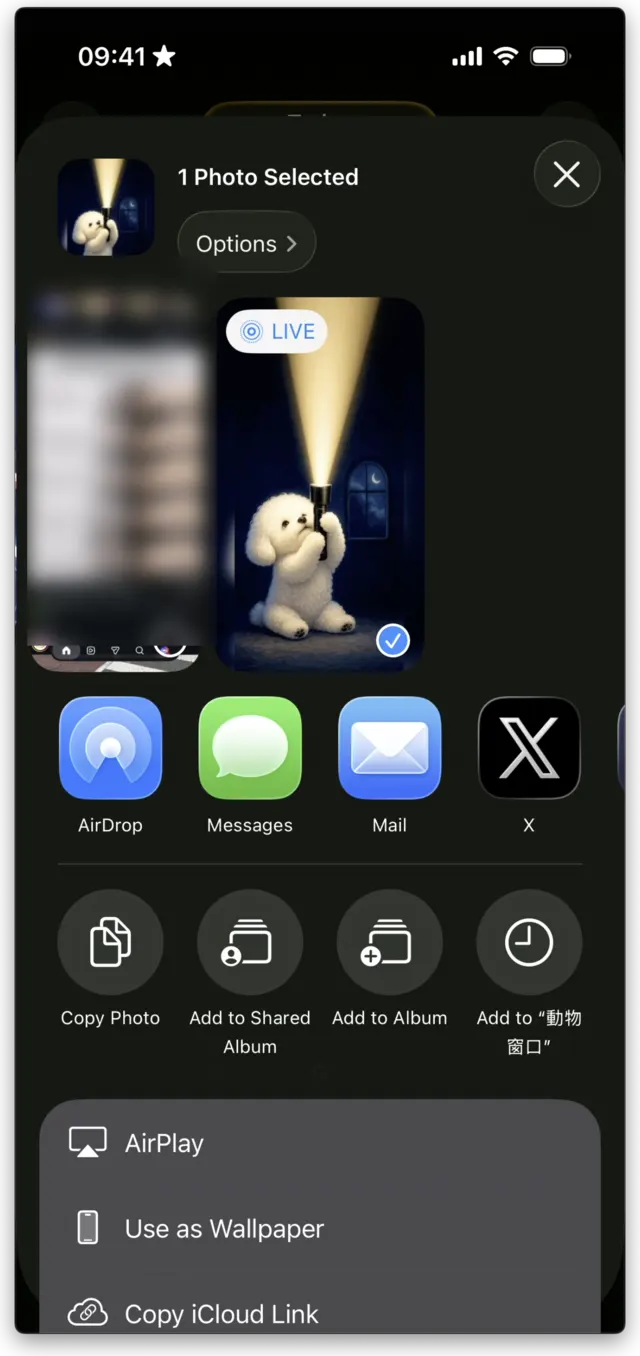
Use as Wallpaper, in the Share sheet of Photos. - 6
Lock the phone, then wake it
Lock your iPhone and wake it. The Scene plays on the Lock Screen. The Home Screen keeps the still frame, because iOS plays wallpaper motion on the Lock Screen only.
Why a Scene instead of a plain photo
A plain photo wallpaper never changes, and it looks like every other photo wallpaper. A Scene gives the same photo a layout and a bit of motion, so it reads as something made on purpose: a family wall, a scrapbook page, a best-friends card.
If you would rather start from a video, use Convert Video in the same tab. The steps are in the guide linked below.
If the motion does not play
A Scene is saved as a normal Live Photo, so the usual causes apply: the motion toggle was off when you tapped Add, or iOS rejected the key frame. The two guides linked below walk through both.
Frequently asked questions
What is a Scene in 2Live?
A template in the Live tab. You drop in your photo and save a Live Photo for your Lock Screen. It plays when you wake your iPhone.
Do I need to shoot a Live Photo first?
No. You drop a photo into the Scene, and the Scene makes the Live Photo.
Does the Scene move on the Home Screen too?
No. iOS plays Live Photo wallpaper motion on the Lock Screen only. The Home Screen shows the still frame behind your icons.
Where does the finished Live Photo go?
Into your Photos library. From there you set it as a wallpaper the same way as any Live Photo: Share, then Use as Wallpaper.
Is 2Live free to download?
Yes, 2Live is free to download on iPhone.
Get thousands of free 4K live wallpapers
All the new features in 2Live 2.11: Scenes, Live Widgets and Convert Video
