How to turn a video into a Live Photo wallpaper with Convert Video
Updated 2026-11-12
Download 2Live freeThe short version
- iOS only takes a still or a Live Photo as a wallpaper, so a video has to become a Live Photo first.
- In 2Live, tap Live, then Convert Video, trim the moment you want, and tap Create Live Photo.
- The result lands in Photos. Set it with Share, then Use as Wallpaper, and keep the motion toggle on.
You cannot set a video as an iPhone wallpaper. iOS accepts a still or a Live Photo and nothing else, which is why a clip you love just sits in your library.
Convert Video is the missing step. Pick the clip, trim the part you want, and 2Live saves it as a Live Photo that you can set from Photos.
Step by step
- 1
Open Convert Video
Open 2Live, tap Live in the bottom bar, then tap Convert Video. To see how it works first, tap Try a sample.

Convert Video, at the top of the Live tab. - 2
Pick your video and trim it
Choose a video from your library. In the Video Editor, drag the handles on the timeline to the moment you want. Clips of up to about 4 seconds work, because the Lock Screen plays the Live Photo once when you wake the phone.

Trim on the timeline, then Create Live Photo. - 3
Tap Create Live Photo
Tap Create Live Photo. 2Live processes the clip and saves it to your Photos library as a Live Photo.
- 4
Set it as your wallpaper
Open the new Live Photo in Photos, tap Share, then Use as Wallpaper. Check the motion toggle in the bottom-left corner shows the play symbol, then tap Add.
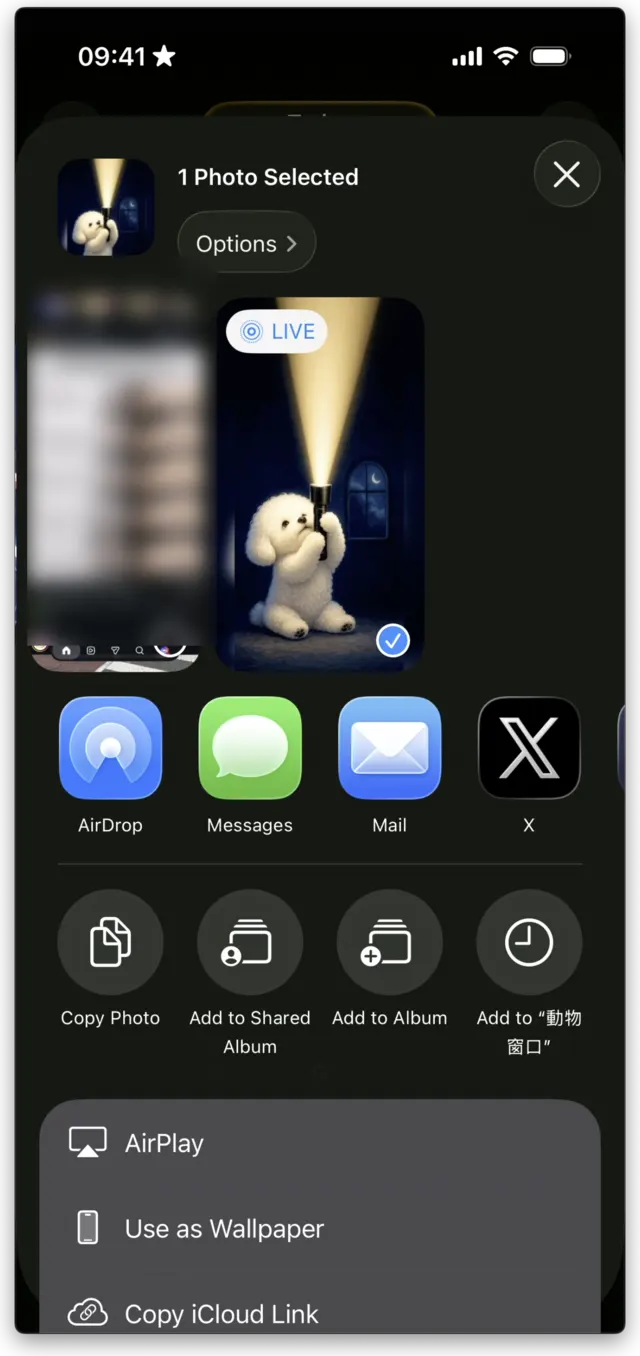
Use as Wallpaper, in the Share sheet of Photos. - 5
Lock the phone, then wake it
Lock your iPhone and wake it. The clip plays on the Lock Screen. The Home Screen keeps the still frame.
Why iOS will not take a video
The wallpaper picker lists photos and Live Photos. A video is neither, so it never appears. A Live Photo is a still frame plus a short clip, and that clip is what plays on wake.
Convert Video builds that pair from your video, and the rest is the normal Live Photo wallpaper path.
If iOS says the motion is not supported
If the wallpaper editor says motion is not available, iOS has rejected the key frame. The guides linked below cover what to check.
Frequently asked questions
How do I turn a video into a Live Photo on iPhone?
In 2Live, tap Live, then Convert Video. Choose the video, trim the moment you want, and tap Create Live Photo. It is saved to your Photos library.
How long can the clip be?
The app's own help says to trim to the length you want, up to 4 seconds.
Can I set a video directly as a wallpaper?
No. iOS only accepts a still or a Live Photo as a wallpaper. Convert the video first.
Where does the Live Photo go?
Into your Photos library, ready to set from Share, then Use as Wallpaper.
Is 2Live free to download?
Yes, 2Live is free to download on iPhone.
Get thousands of free 4K live wallpapers
All the new features in 2Live 2.11: Scenes, Live Widgets and Convert Video
